Font management
Font Sources
- System: all macOS installed fonts
- Editors: live fonts from open Glyphs, RoboFont, and FontLab documents (see below)
- Test Install: fonts exported from Glyphs via “Install for Testing”
- Imported: compiled fonts (.otf, .ttf, .ttc, .dfont), Glyphs sources (.glyphs, .glyphspackage), UFO and designspace sources, and FontLab .vfj and .vfb files. Everything can be added via the file picker or drag and drop.
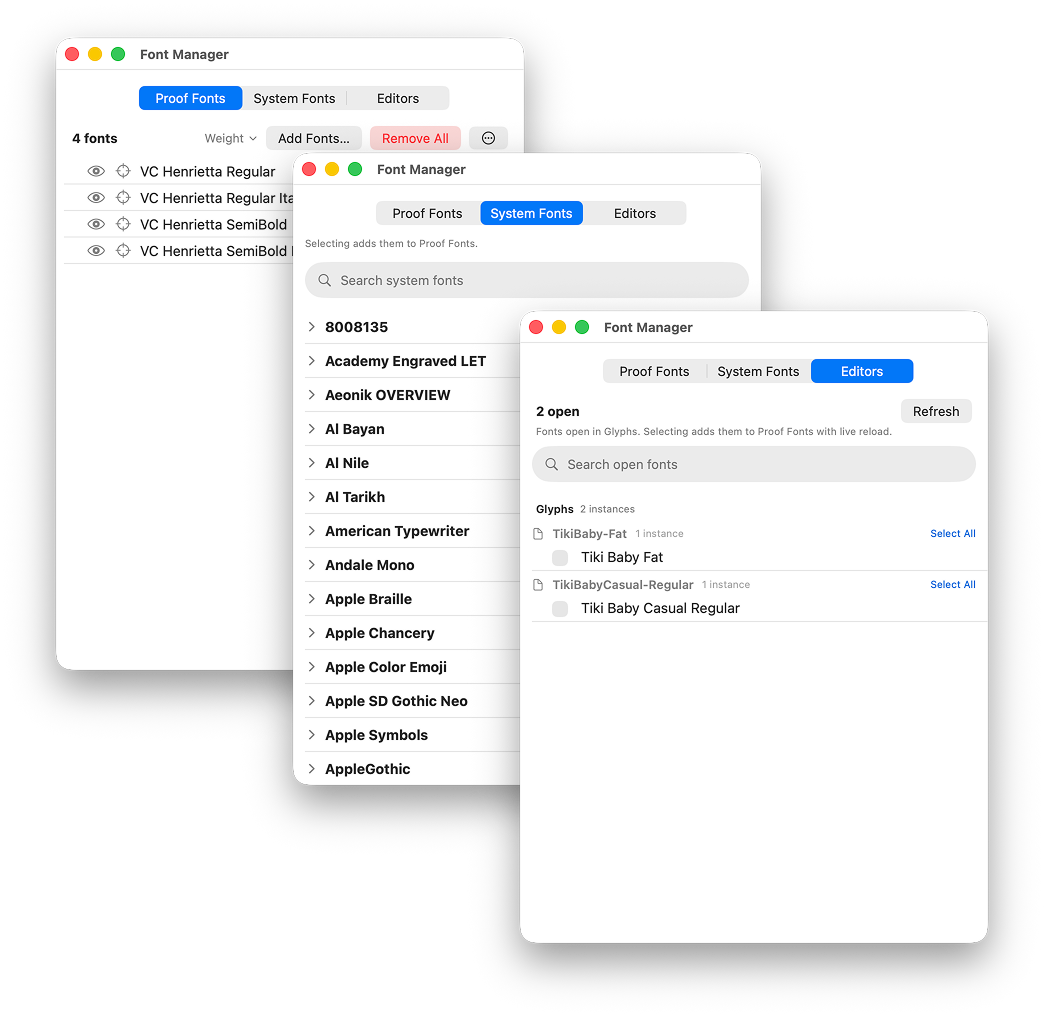 The Font Manager's three tabs: the proof's fonts, the system library, and live fonts open in your editor
Source Compilation
Font sources don’t need to be compiled first; Hellbox compiles them for you with the bundled fontc compiler:
- .ufo: a single UFO compiles to a static font
- .designspace: compiles to a variable font, complete with axis sliders
- .vfj: FontLab 8 files compile natively, preserving glyphs built from element references
- .vfb: legacy FontLab files are converted through UFO, then compiled the same way
Kerning groups named the older way, without the UFO3 public.kern1. / public.kern2. prefixes, are normalized before compiling so class kerning survives; your files are never modified.
Watched Folders
Point Hellbox at a folder and every font inside it is live: when a file changes, the proof reloads automatically. This includes recompiling .ufo and .designspace sources on save, so you can work in any editor and watch the proof update.
The Editors Tab
The Editors tab lists fonts from your open font editors, no export step required.
Glyphs (3 or 4)
Open documents are grouped by file, with a row per instance and a Select All / Select None control per file. Fonts reload live when you save in Glyphs.
RoboFont
Hellbox polls RoboFont via AppleScript every couple of seconds; macOS asks once for Automation permission the first time. When an open .ufo belongs to a .designspace, Hellbox resolves it to the designspace so the whole family is proofed as an interpolated variable font.
FontLab 8
A one-tap “Enable live sync” banner installs a small, clearly labelled, removable helper into FontLab’s startup script. The banner appears while FontLab is running. After one FontLab relaunch, its open fonts are listed live, reloading on every save. Saved .vfj files compile natively.
Round Trip
The proof sends you back to your editor. Hold Cmd and the glyph under your cursor lights up; click it and it opens for editing. Select a string and hit Return (or right-click for Open Selection in…) to send the whole selection over instead.
- Glyphs: you can also double-click a glyph without holding Cmd. The glyph opens in a new edit tab, on the master belonging to the style you clicked (nearest by axis coordinates when the style is an interpolation). Selections open as edit tabs too.
- RoboFont: the glyph opens in its glyph window; selections land in a Space Center. Works from .ufo and .designspace sources, and launches RoboFont with the UFO if it isn’t already running. Requires RoboFont’s remote-scripting preference, which is off by default.
- FontLab 8: the glyph opens in a FontLab tab; selections open as a new text tab. Requires live sync (above).
Variable Fonts
- Axis detection and display (e.g., wght=500, wdth=75)
- Axis sliders with per-axis reset (plus Reset All)
- WWS name table integration (Name ID 21/22)
- Per-instance axis presets from Glyphs
- Named-instance selection: add a
.designspace(or a variable font) with multiple named instances and Hellbox asks which ones to proof. All instances start selected, with Select All / Select None to narrow down, and each chosen instance becomes its own proof row pinned to its coordinates. The picker appears from every add path: the Add Fonts panel, drops on either window, and drops on the Dock icon. - Instance dropdown per row: a row added from the picker carries the font’s full instance list, so you can switch it to any other named instance afterward, or nudge the axis sliders off an instance entirely.
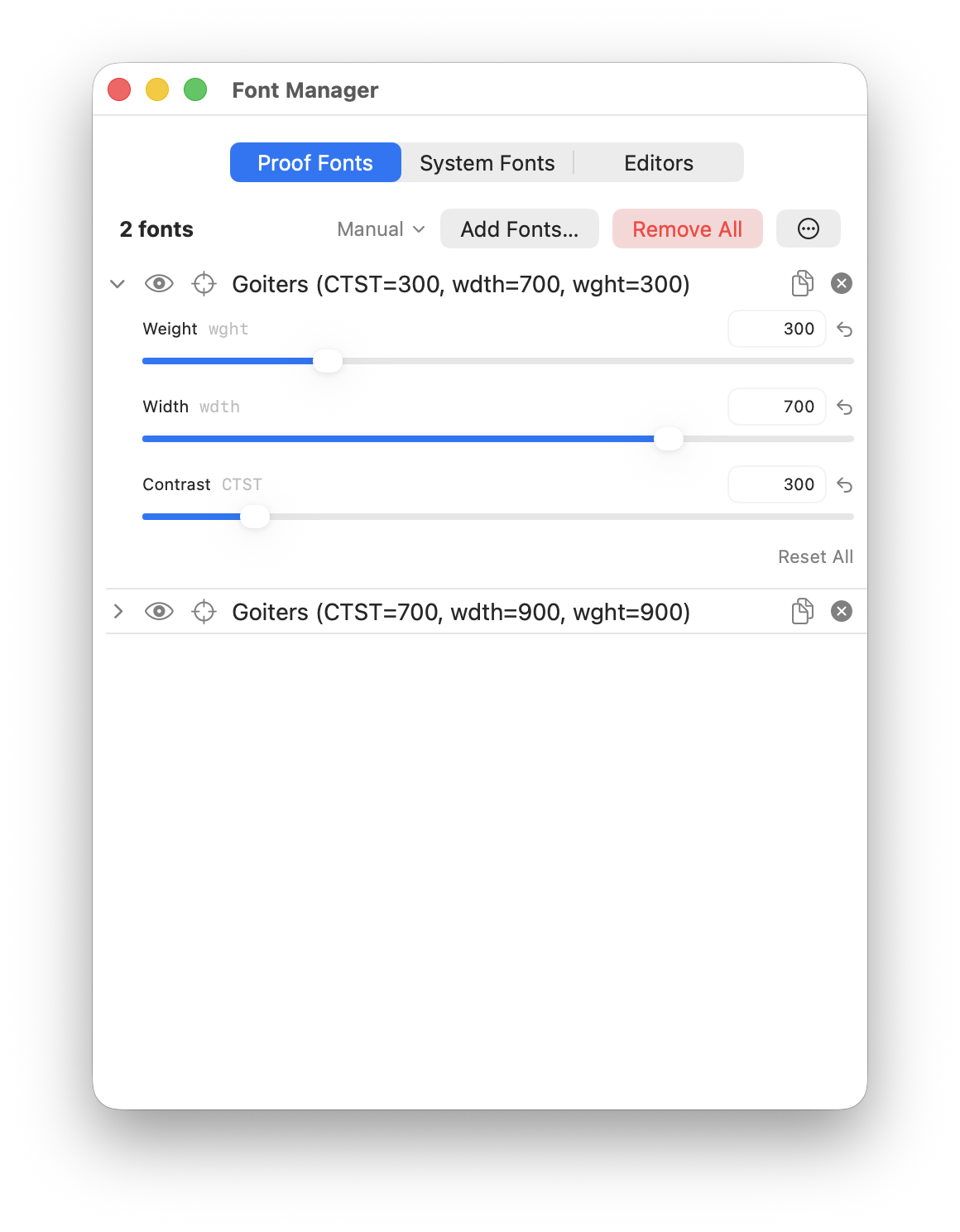 Axis sliders on a proof font: two locations of the same variable font, duplicated to compare, with per-axis reset and Reset All
Font Sorting
- Document order, manual, weight, width, width + weight, alphabetical, date added
- Width comes from the wdth axis or the font’s OS/2 width class, with style-name parsing as the fallback, so families sort correctly whether or not they’re variable
- Per-section override with independent sort order
- Ascending or descending direction
Per-Section Font Control
- Disable specific fonts per section
- Section-specific font override
- Per-section font ordering
- Solo mode: focus on a single font across all sections
Inline Styling & Font Mixing
When a section has more than one font, a Page break / Line break / Mix / Layer control decides how they lay out.
Page break (default)
Each font gets its own page or pages. No tag processing.
Line break
Each font’s content is stacked one after another in a single continuous flow, rather than a page per font. On Simple and Waterfall sections, the page header lists only the fonts that actually appear on each page.
Font checkboxes are shared across Page break, Line break, Mix, and Layer. Unchecking a font excludes it in all four layouts and sets its Mix percentage to zero. The remaining enabled fonts share 100%; rechecking a font gives it a share again.
Mix: Auto
Auto-distributes multiple fonts across text by weighted probability. Configurable per-font mix weights (e.g., 50% base font, 30% second, 20% third). Seeded random distribution gives reproducible output. Useful for simulating real-world text with multiple weights.
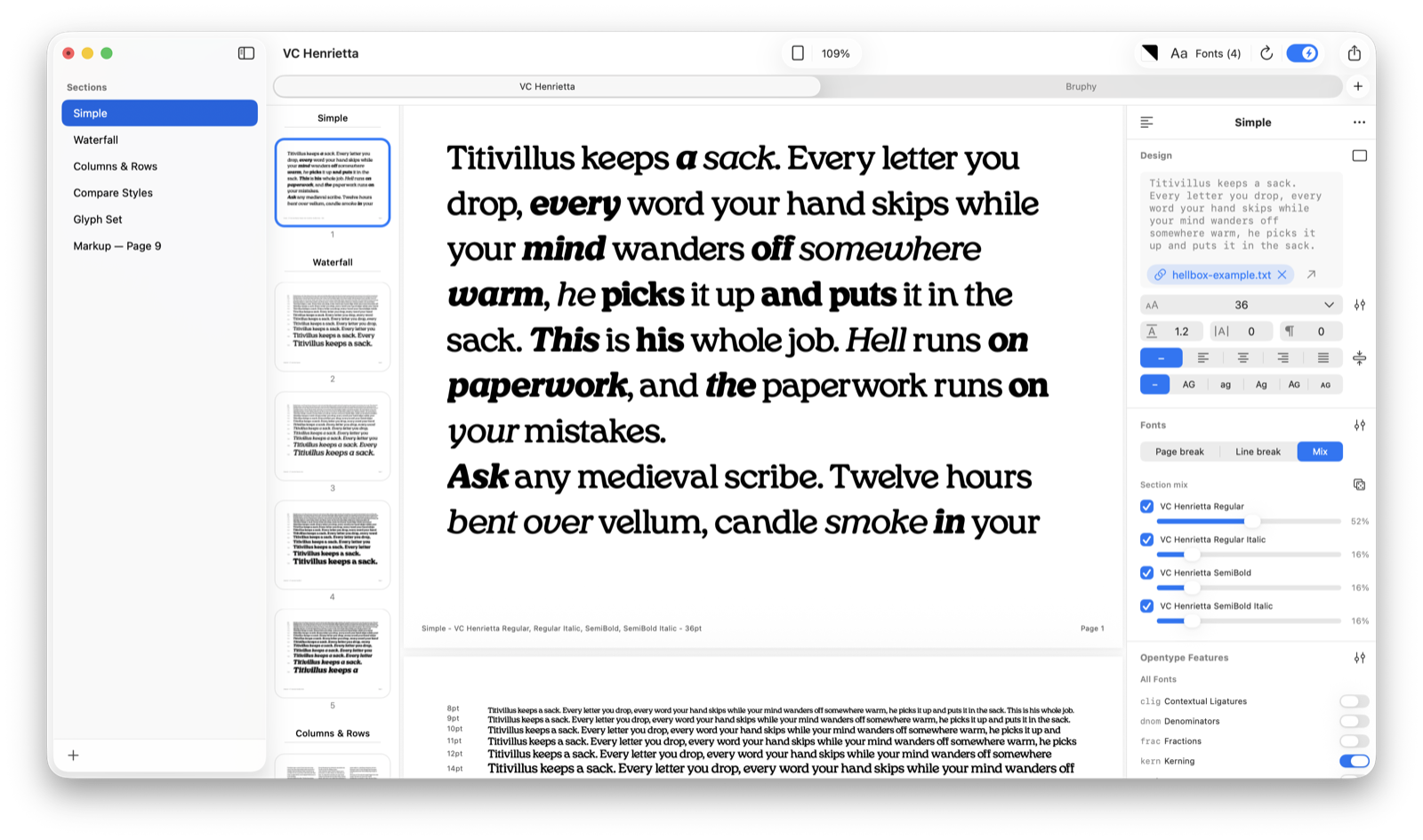 Mix mode blending VC Henrietta Regular, Italic, and SemiBold through one paragraph, with per-font mix weights in the Fonts panel
Mix: Manual
Type <b>, <i>, <u> tags directly in content, or use Cmd+B / Cmd+I on a selection. The parser converts tags to font substitution (the bold tag maps to bold weight, the italic tag maps to italic style). For any font beyond bold and italic, the [Family-Style:text] token sets an exact font on a run of text, e.g. [MyFont-Black:Hamburgefonts]. A strip-tags button cleans everything out.
Layer
Every font in the section renders the same content stacked on one page, each at a set opacity (default 50%), so overlaps read darker where the outlines differ. Made for comparing versions of a font in progress, or styles against each other, directly on top of one another. An opacity field appears under the control; arrow keys step 1%, shift steps 10%. The page footer names the whole stack.
For mixing several separate font files into one multi-color specimen (chromatic fonts), see Layered fonts.
Reloading renamed families
Renaming a family in a live source updates the font list and page labels after you save. Hidden styles, selected instances, and per-section settings carry over to the renamed family. Hidden fonts also remain hidden through ordinary live reloads.